.png?width=190&height=95&name=Sittadel%20Header%20Logo%20(2).png)
This article is intended for employees of organizations that use Sittadel's security. Additionally, there are some actions that can only be accomplished by those with administrative privileges.
Message Trace
Message trace follows email messages as they travel through your organization. You can determine if a message was received, rejected, deferred, or delivered by the service. It also shows what actions were taken on the message before it reached its final status. This procedure outlines information to efficiently answer user questions about what happened to messages, troubleshoot mail flow issues, and validate policy changes.
This guide will accomplish the following:
- Reference Exchange Message Trace to troubleshoot mail flow.
Procedure Scope: Administrators
Required Group Membership: Admin.EmailDelivery
Investigating Email Utilizing Message Trace
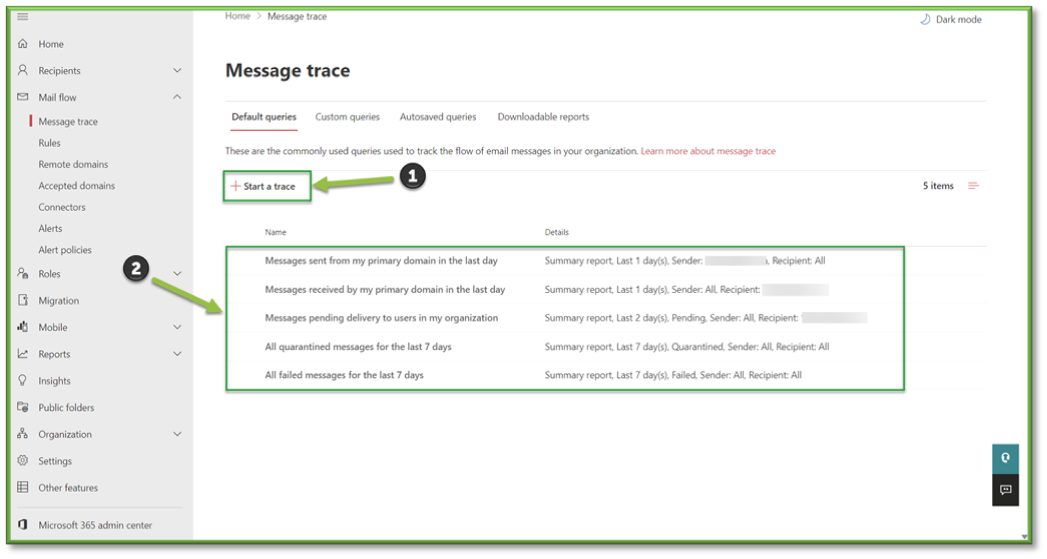
- Navigate to Message Trace – Exchange Admin Center, you can either select Start a Trace, where you can specify the: sender, recipient, time range, delivery status, message ID, direction, original client IP address, etc. or use the Message Trace defaults where you can see messages sent, received, or pending delivery; as well as messages that were quarantined or failed to be delivered.
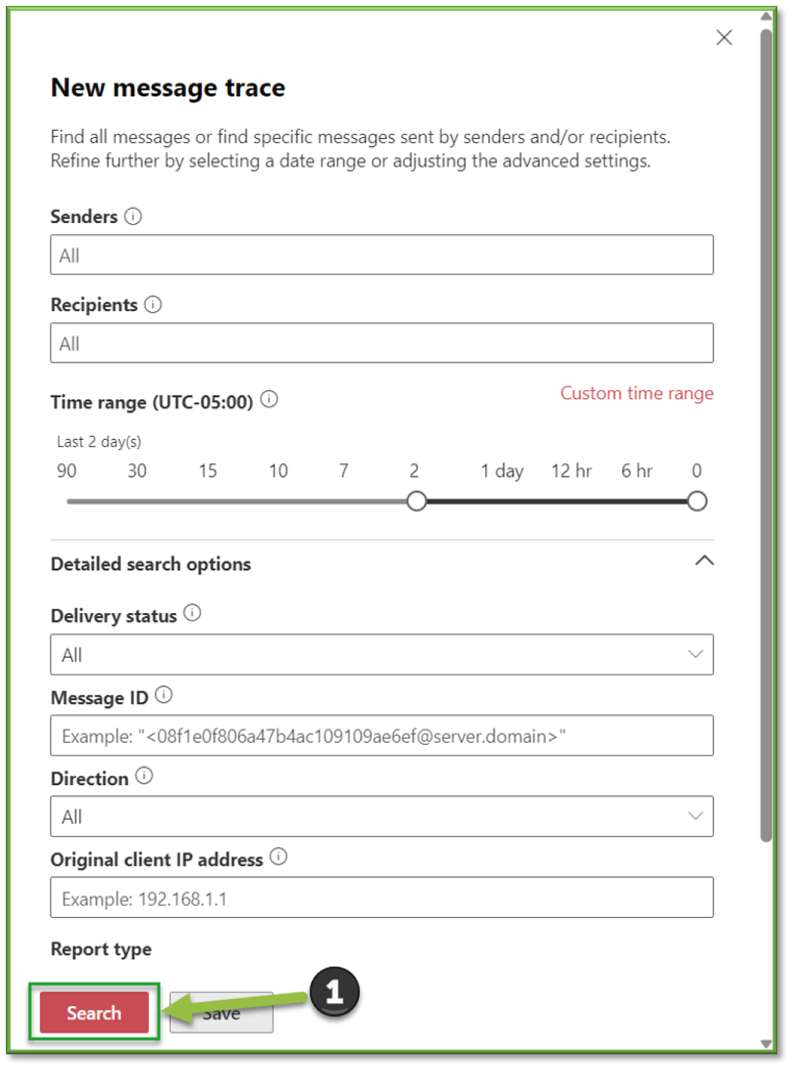
- Regardless of what you select; a pop-up will be displayed where you can specify the sender or recipient of a message, a timeframe within the last 90 days (if the message exceeds 10 days you can only view the information via .csv), the status of the email, if it was inbound or outbound, etc. When your parameters have been set, select Search to generate emails.
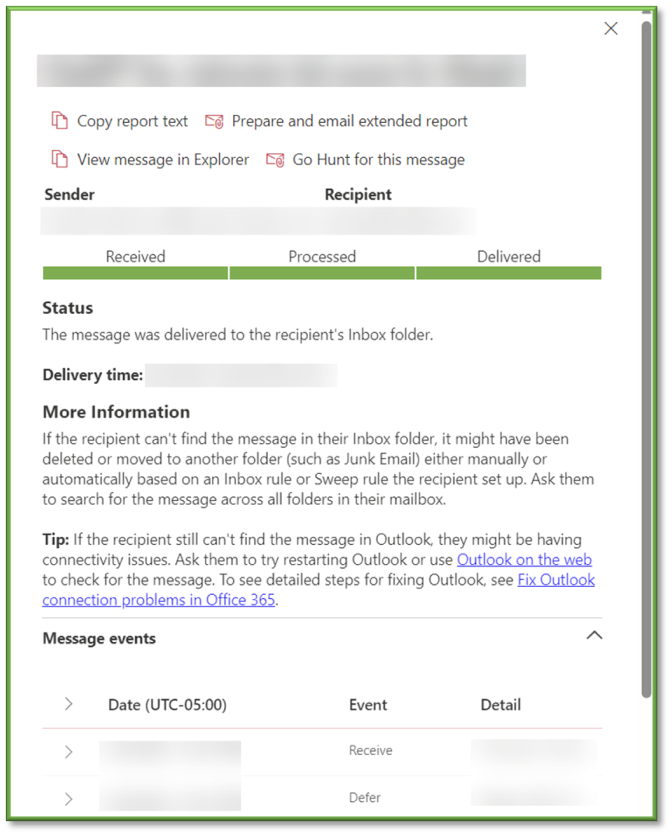
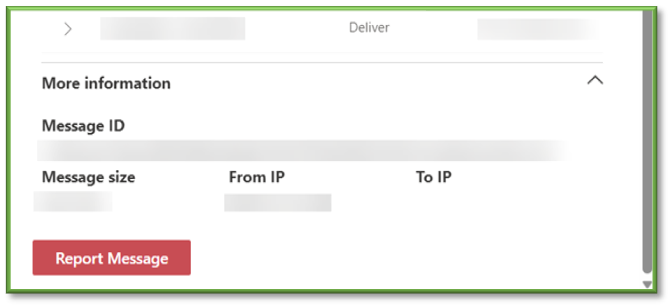
- After the results have been pulled, a list of emails that matched the conditions will be displayed, when you select one of the messages you will be displayed with the delivery status, events of the message being sent, received by the mail server, and delivery to the recipient (in the case of a non-failure delivery) and additional information such as the message ID and the IP the message was sent from will be available for analysis.
You're Finished!
You should have successfully located the messages that matched your search criteria, depending on the status of the message will impact the next steps for troubleshooting having to either adjusting a threat policy causing an unintentional hold or creating a bypass for an email connector or sender/recipient. For any other problems or questions, reach out to us!